







Before you start
Should You Install Before You Leave or When You Arrive?
We recommend installing your eSIM before you leave. This is because you need WiFi to install the eSIM, and then once you arrive you will be connected right away!
You can however install it when you arrive, that is totally fine, just remember you need WiFi to do so and not tethered (hotspot) WiFi.
Tips & Reminders
- Activating a data-only eSIM is different to installing one. Activation happens automatically when you arrive in your destination, but before this you need to install your eSIM.
- Consider temporarily turning off apps like Google Sync to reduce background data usage.
- To prevent roaming fees from your monthly provider we recommend turning off your Primary SIM - many providers don't charge roaming for just leaving it on but it's up to you to check.
Method 1: Install by Scanning Your QR Code
The most popular method of installation is to scan the QR code you were sent via email when you purchased your eSIM - haven't received it? Contact us.
You will need to open the email on a different device and scan the QR code using your phone's camera or in built QR code scanner - do not use a third-party QR scanning app as this won't trigger the installation.
Typically people scan the QR code off their laptop, tablet, a family member's phone, or a printed copy - all work fine.
Only have one device? No worries - skip ahead to Method 2 where you can install it manually using the ZenSim app.
Method 2: Install Manually via the ZenSim App
If you download the ZenSim app, you will be met with two different installation options:
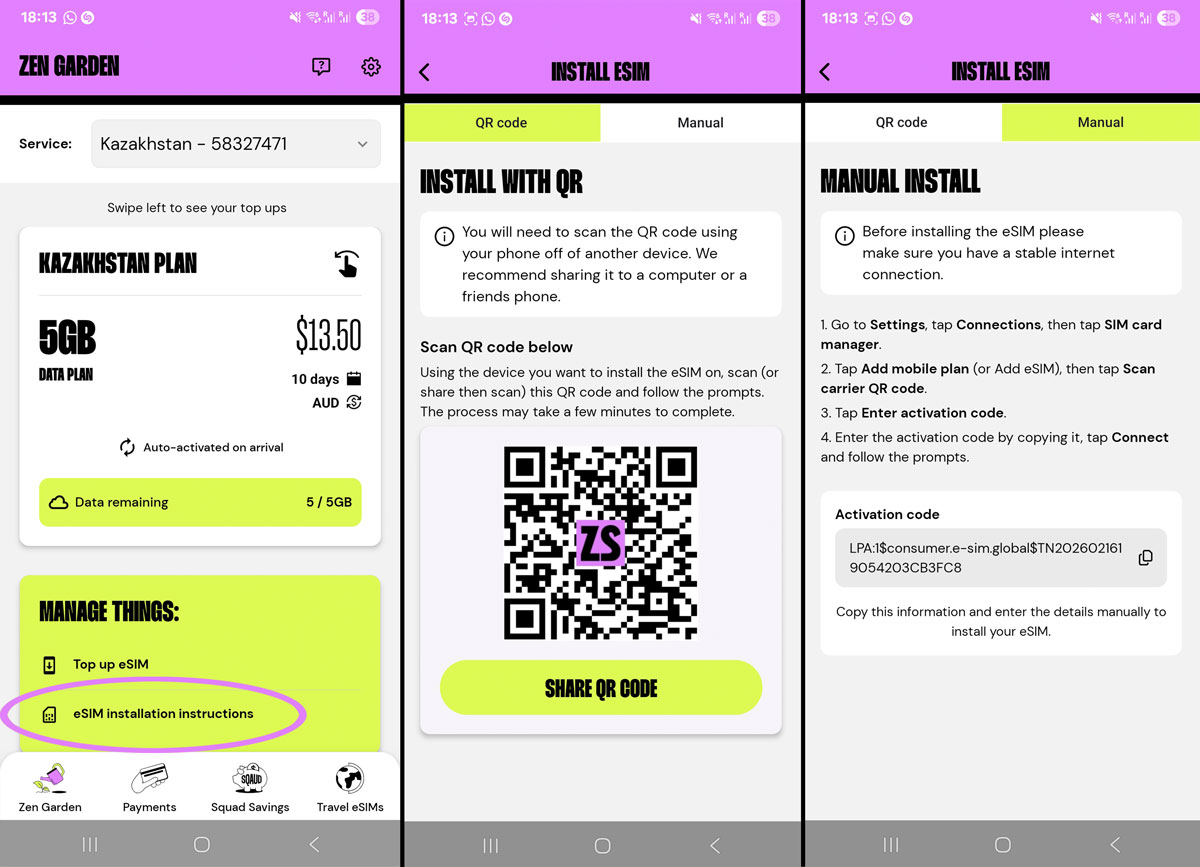
- QR code - Same as the QR option above you can share the QR code from the app to a device so you can scan it
- Manual install - Some people prefer to just copy paste the eSIM code into the settings manually so we give you instructions to do also
To manually install the eSIM to your Motorola device you will need to copy the Activation Code from within the app, then follow these instructions:
- Go to Settings > Network & Internet > SIMs & mobile network
- Click "+ Add eSIM" > Then "Set up an eSIM"
- Then tap “Enter activation code”
- Enter activation code you copied from the ZenSim app
- Tap Connect / Download
Completing Installation
Follow the prompts
Once you have begun installation using one of the above methods follow the prompts which will ask if you want to Setup your eSIM, click Setup or Continue to finish installation.
Confirm eSIM installed
After this, if you open Settings > Network & Internet > SIMs & mobile network you should be able to see your eSIM under "Downloaded SIMs"
Not overseas yet? - You can continue the other steps after you arrive, you're good for now.
Already overseas? - Then proceed to set Mobile Data and enable Data Roaming as explained below.
When you arrive overseas
Do these things when you land:
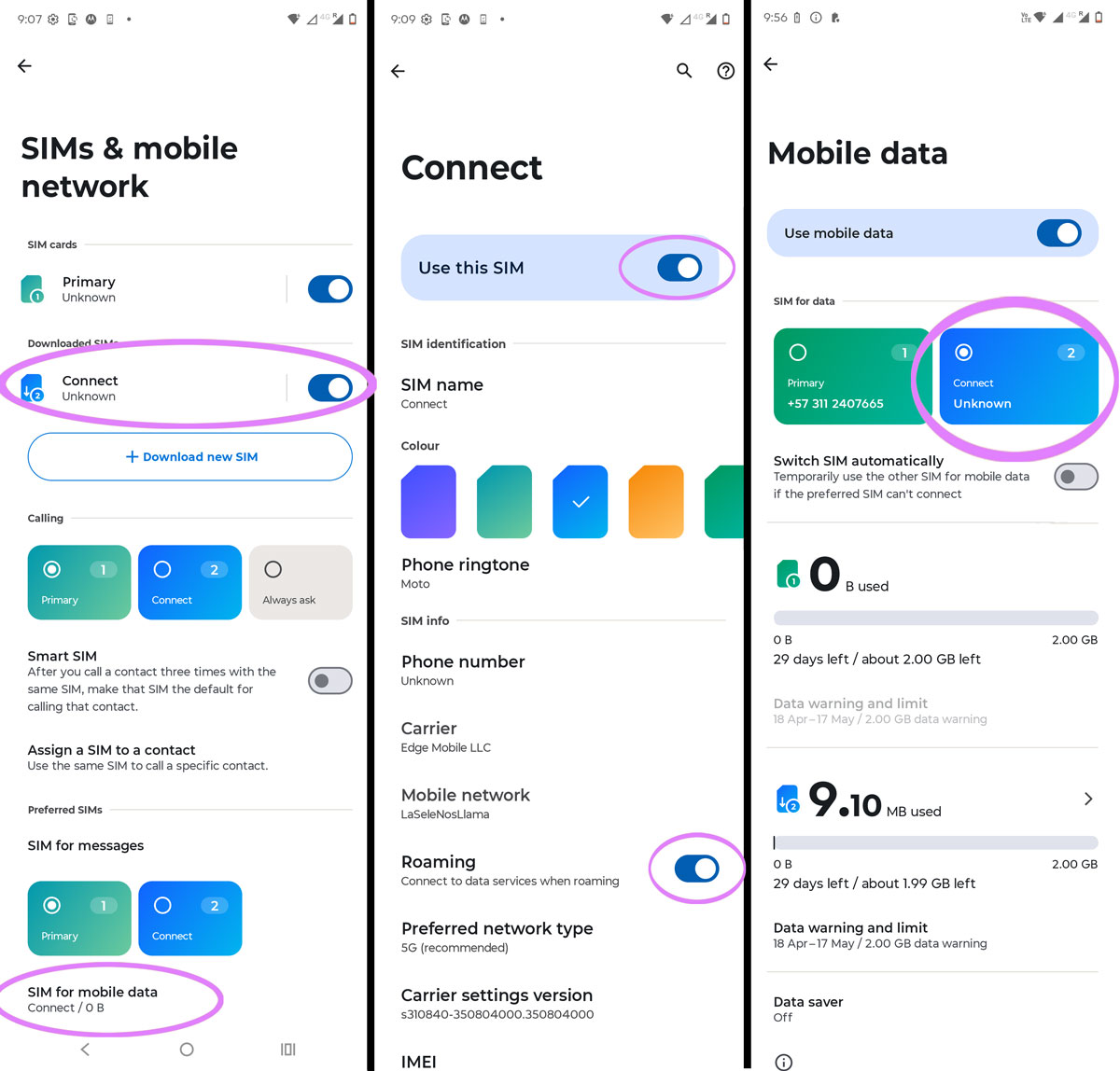
- Open Settings > Network and Internet > SIMs & mobile network
- Tap on your eSIM under Downloaded SIMs
- Ensure "Use this SIM" is enabled and "Roaming" is enabled
- Go back to SIMs & Mobile network
- Scroll down and select "SIM for Mobile Data"
- Ensure your SIM is selected under "SIM for Data"
- Turn on flight mode, wait 30 seconds, turn it off again
Once you do the above you should be able to connect, note it can take up to 15 minutes to find the network in a new country for the very first time.
Do not scan the QR code again
If you already have the eSIM installed like we confirmed above you do not need to scan the QR code again, this will display an error which will tell you the QR code has been used already since the eSIM is already installed.
The eSIM will activate automatically
You do not need to do anything to "Activate" the eSIM provided it is installed already and you have followed the instructions above for when you land it should be all gravy.
You do not need to click anything or scan anything and you don't even need to use or download our app in order to use the eSIM - but we do recommend our ZenSim app for topping up and checking your balance of course.
Common errors
"Couldn't activate service" error
- Ensure you are connected to good WiFi (not hotspot or tethered) and you have disabled any VPNs or parental control software and trying again.
- If you still see this error we recommend trying to install the eSIM manually by following the instructions above in Method 2.
- Confirm the eSIM is not already installed - check Settings > Network & Internet > SIMs & mobile data > It should be listed under "Downloaded SIMs"
Still not working? Reach out to us and we will get you up and running ASAP.
QR code scanned but taken to a random website or nothing happens
Ensure you're using your phone native camera or native QR code scanner to scan the QR code - do not use a third party app to do this.
Also make sure you have no VPN active or Screen Time / Content Restrictions enabled on your device.
If in doubt, you can follow the manual installation instructions above in Method 2 instead.
If you still can't get it working - contact us and we will help you out.

Get amongst it
Join the community
We will reach out when we launch new products, about our sustainability projects, specials, new innovations or maybe even cool sh*t we think is inbox worthy.


