









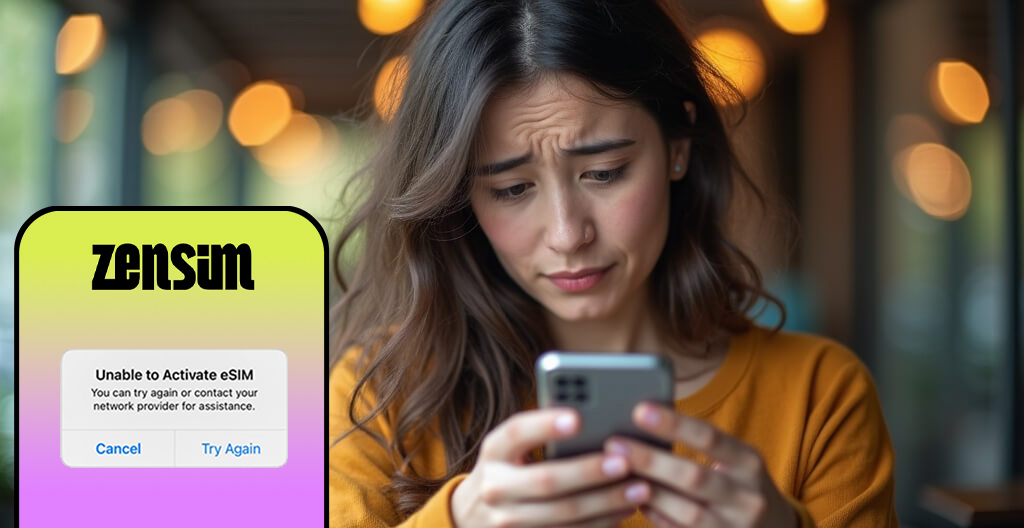
If you're seeing the message "Unable to Activate eSIM - You can try again, or contact your carrier for assistance." when trying to install or activate your Travel eSIM in your iPhone, then this article is for you.
Travel eSIMs you may like:

Unable to Activate eSIM
Now, before we dig into the solution, nine times out of ten this is not actually an issue and your eSIM is already installed in the background, so that's good news!
The solution
First check your internet connection
Your phone should have an active internet connection - either Wi-Fi or mobile data before installing the eSIM. It’s a crucial step, since the setup process relies on that connection to verify and activate your eSIM properly. Keep in mind mobile data will also work provided you're using a different eSIM for the mobile data.
Also ensure you're not using a firewalled network, we have had customers who have firewalled Wi-Fi at their office which has also caused issues here.
Check that the eSIM is installed
If the issue is not your internet and you're using an iPhone it is very likely your eSIM has actually already installed and you don't need to do anything. Why? If you have not left for your travel yet, then the eSIM will not be able to "activate" but it will be able to "install". When you actually arrive at your destination, the eSIM will be automatically activated.
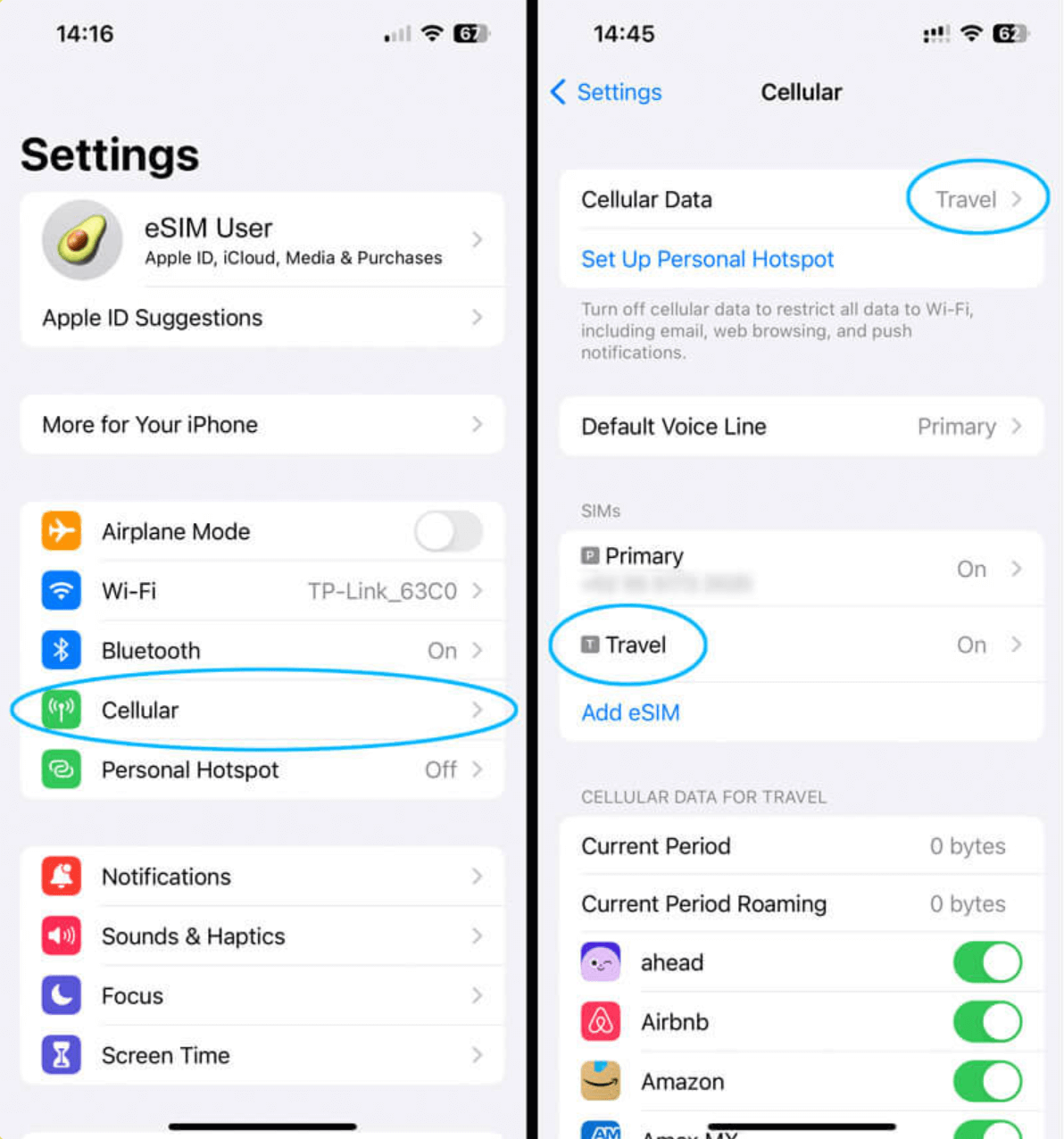
To check that your eSIM is installed you just need to make sure that you have your eSIM installed in your phone settings:
- Open Settings
- Tap Mobile (or 'Cellular')
- If you can see your new Travel eSIM on this screen, then you have installed it successfully already (see image for example).
As we said the reason you see an error is because your eSIM can't activate but it will automatically activate when you get to your destination so you're good to go and can happily ignore the error.
Settings to ensure connection when you arrive
When you get to your destination if you struggle to connect to the network, you may need to update your settings to tell the phone to use your new eSIM for your mobile data. To do this follow these steps:
- Head to Settings on your phone
- Tap Mobile (or Cellular)
- Tap Mobile Data at the top and choose your eSIM – this sets it as your active data line
- Go back to the Mobile menu, scroll down, and tap your eSIM (it might be labelled Personal, Travel, or Secondary)
- Make sure Turn On This Line is switched ON
- Make sure Data Roaming is also switched ON
Then you should be good to connect. The above only needs to be done on iPhones so if you're seeing an activation error on your Android or other device please contact us and we will get you sorted ASAP.
If you continue to have issues, can't find your eSIM in your settings or can't get connected when you land please reach out to us and we will get you up and running!
FAQs
In most cases your eSIM has actually already installed successfully in the background - the error just means it can't activate yet because you haven't arrived at your destination. Check Settings > Cellular to confirm your eSIM is listed. If it is, you're good to go - it will activate automatically when you land.
Go to Settings > Mobile (or Cellular). If your travel eSIM appears in the list of lines, it's installed successfully. The 'unable to activate' message is normal before you arrive in your destination country.
Go to Settings > Mobile (or Cellular), tap 'Mobile Data' and select your travel eSIM as the active data line. Then tap your eSIM from the list, make sure 'Turn On This Line' is switched on, and check that 'Data Roaming' is also enabled.
Yes. Corporate or office WiFi networks with firewalls can block eSIM activation. If you're on a restricted network, try switching to a different WiFi connection or using mobile data from another device or SIM to complete installation.
The specific 'Unable to Activate eSIM' message is an iPhone error. Android devices handle eSIM activation differently. If you're seeing connection issues on Android, contact your eSIM provider directly for device-specific help.
Travel eSIMs you may like:
Written by
Josh Warner
Co-founder of ZenSim, full-time banana bread lover.
Josh has been an engineer for the past 12+ years and in the telecommunications industry for the past six. A self proclaimed developer, designer, copywriter and occasional gym goer, if you have used a ZenSim website or app, it's likely Josh was the one who designed & built it.
.webp)
Get amongst it
Join the community
We will reach out when we launch new products, about our sustainability projects, specials, new innovations or maybe even cool sh*t we think is inbox worthy.


