







Getting an "eSIM Cannot be Added" error?
This is normal, as it means you have actually already installed your eSIM. Once installed, eSIMs cannot be installed again on the same device or onto a different device. To find your eSIM, go to Settings > Tap Network and Internet > SIMs and check for your travel eSIM it may be called "Travel", "Connect", "Travel - Connect" or something else. It is usually the one at the bottom, but please contact us if you need help.
Common Connectivity Issues
You might encounter the following problems when your eSIM isn’t connected to a data network:
- Extremely slow download/upload speeds
- Only "E" (Edge) appears in the signal status, instead of 4G LTE or 5G
- No Internet connection, even though the eSIM shows it’s connected
Do not delete the eSIM from your phone. If it isn’t working, don’t worry - follow the steps below or Contact Us if you need further help.
Troubleshooting steps
1. Are You in the eSIM Service Area?
Your eSIM will only function in the designated destination. For example, a USA eSIM will only connect in the USA. While you can install the eSIM anytime, it won’t connect until you arrive at your selected destination.
2. Ensure Roaming is on & Mobile data set
Data Roaming must be enabled and Mobile Data must be set for the eSIM to connect to a network.
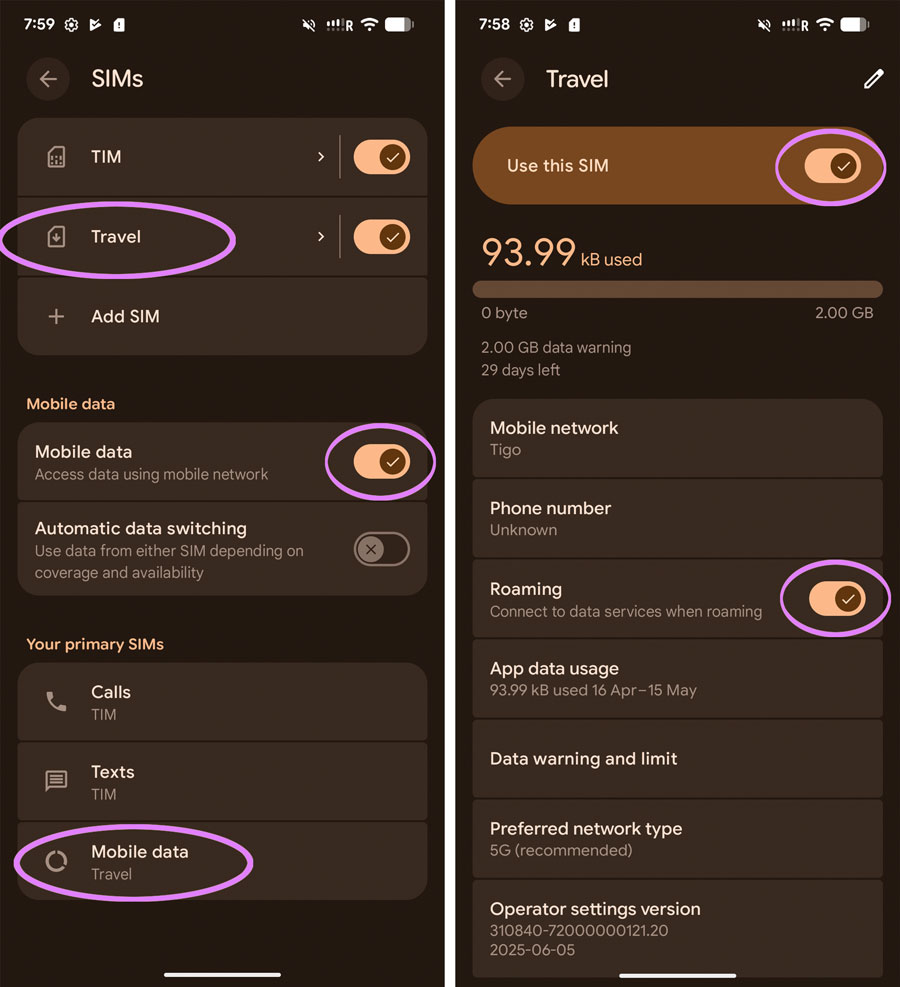
- Open Settings > Tap Network and Internet > SIMs
- If you can see a "Mobile Data" switch ensure it is enabled
- Scroll to the bottom if you see "Your Primary SIMs" make sure Mobile Data is set to your Travel eSIM (if you can't see this option it's fine)
- Select your eSIM plan > Enable Data Roaming (on some models you may see Mobile Data here, if so, turn it on)
- Turn on flight mode, wait 30 seconds, turn it off again
Note: You may need to allow up to 15 minutes for the eSIM to authenticate when first arriving in a new country.
3. Reset the connection
If the above settings are all correct then often we can reset the connection using airplane mode if you have not done this already:
- Enable Airplane Mode
- Wait 30 seconds
- Turn it off
4. Configure APN
If the steps above didn't work, you may need to manually add an APN on your Google device. Follow the steps below to do so:
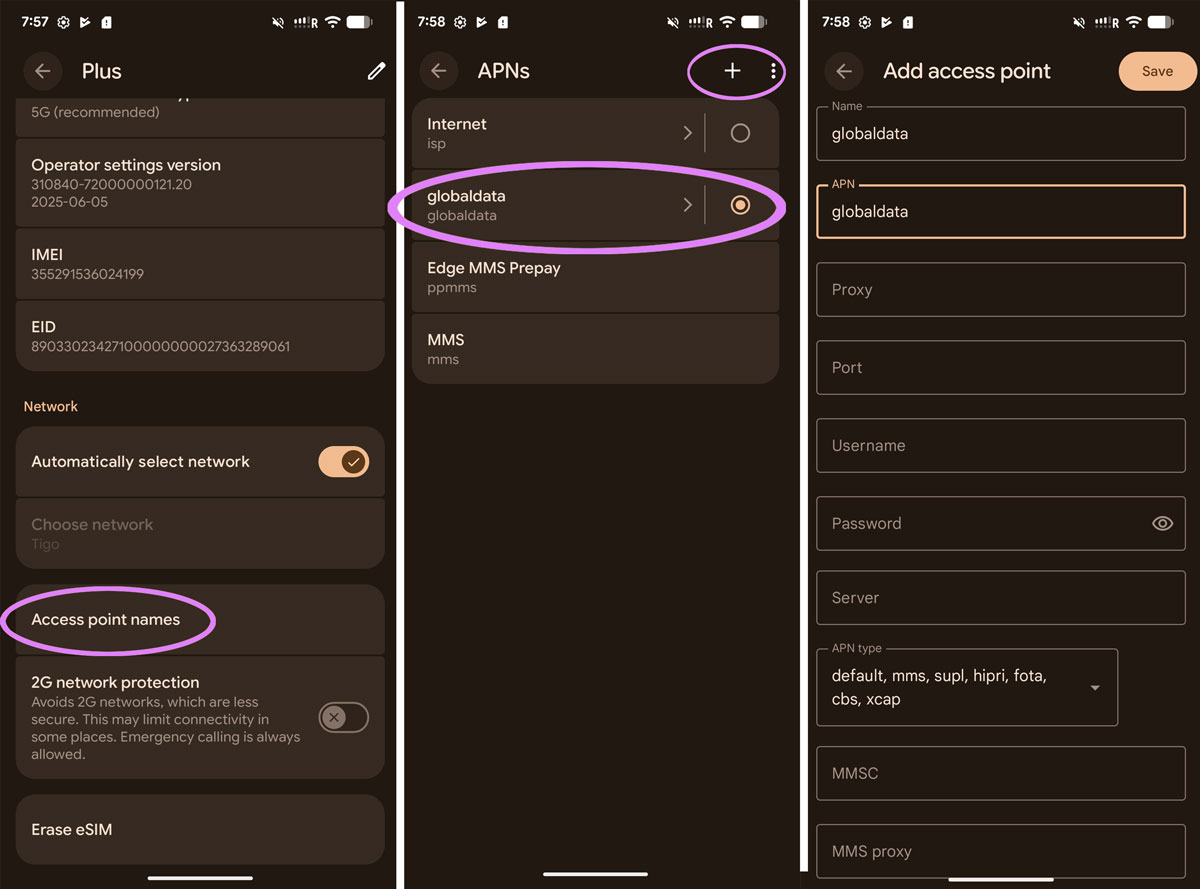
- Open Settings > Network & internet > SIMs > Select your eSIM
- On the next screen scroll down to tap on Access Point Names
- Tap the + (plus) sign to add a new APN in the top corner
- In the APN and name fields, enter globaldata. Delete any entries in the username or password fields.
- Return to the previous screen and select the new APN.
- Enable flight mode, wait 30 seconds and disable it again
5. Manually select a network
If the above does not work, sometimes manually selecting a network can solve the connectivity issue:
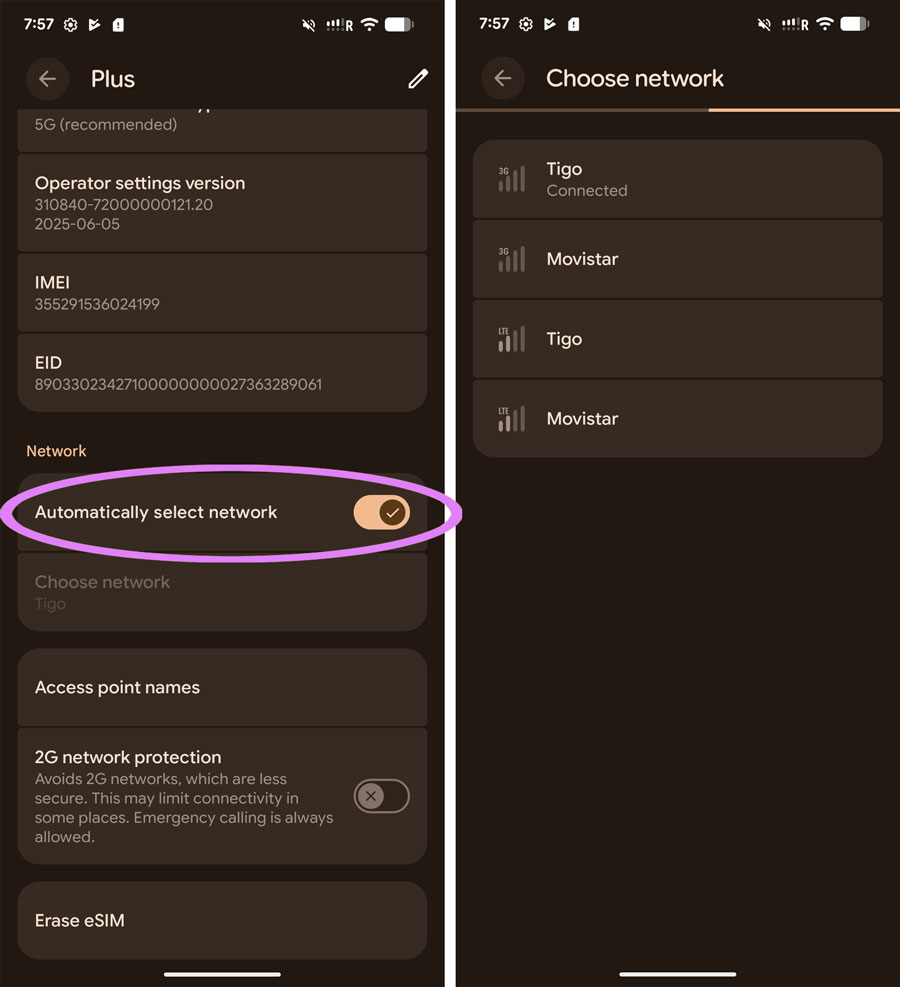
- Open Settings > Network & Internet > SIMs > Select your Travel eSIM
- Scroll down to Network and turn off "Automatically select network" > Wait a few seconds for networks to load
- Please select one of the available networks from the list - you may try more than one as we support many
- Turn on Airplane mode, wait 30 seconds, then turn it off again
If you're using a regional eSIM (like Europe or Asia) we recommend turning Automatic back on once you manage to get a connection or if you leave to a new country.
6. Turn off any VPN or Parental Control
If you're using a VPN, Parental control or any sort of blocking technology - please disable that as it could interfere with the connection.
Still not working?
Contact us and we'll get you sorted as soon as possible (usually within a few hours). In rare cases there may be no service in the area or a network outage beyond our control, sometimes we may need to replace your eSIM, but we'll do everything we can to get you connected.

Get amongst it
Join the community
We will reach out when we launch new products, about our sustainability projects, specials, new innovations or maybe even cool sh*t we think is inbox worthy.


